How to Speed Up WordPress: The Hosting-Level Fixes That Actually Work
Most slow WordPress sites need server fixes, not another plugin. Page and object caching, PHP versions, OPcache, cron, images and how to measure the result.
When a WordPress site feels slow, the usual advice is to install a speed plugin. Sometimes that helps. Often it just moves the problem around, because the real bottleneck is how the server runs WordPress in the first place.
This guide focuses on the hosting side: the fixes that change how quickly your server can answer a request. They're listed roughly in order of impact. Most can be done from your hosting control panel, or by asking your host's support team.
First, measure where the time goes
Before changing anything, get a baseline. Two numbers matter most:
Time to first byte (TTFB): how long the server takes to start sending the page. Google suggests 0.8 seconds or less (web.dev). A high TTFB points to a server-side problem.
Largest Contentful Paint (LCP): when the main content appears. The "good" threshold is 2.5 seconds (web.dev).
Test a few different page types: the homepage, a blog post and, if you have one, a product page. Test while logged out, since that's what visitors see. Write the numbers down so you can tell what each change actually did.
1. Use a page cache (the biggest win)
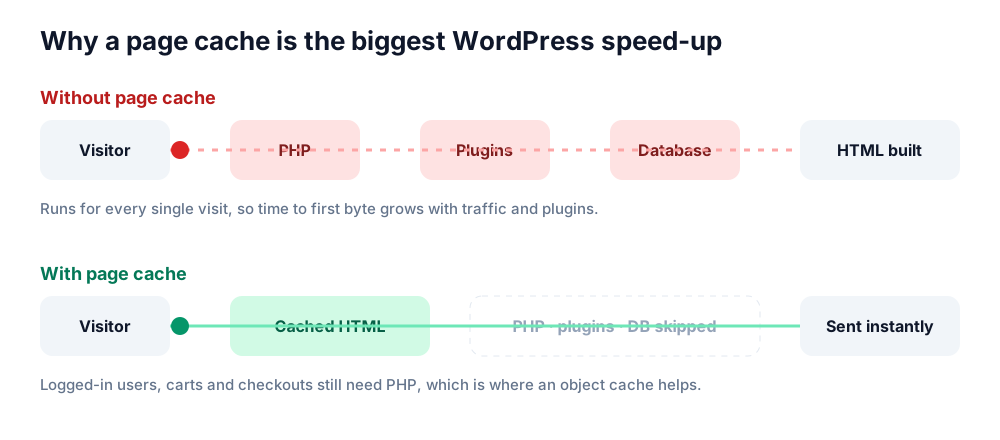
Every time someone visits an uncached WordPress page, the server starts PHP, loads WordPress core, runs every active plugin and theme, queries the database and assembles the HTML. Then it does all of that again for the next visitor.
With a page cache, most visits skip PHP and the database entirely.
Compare hosts the community actually votes for
Real customers rank providers by speed, support and value — no paid placements.
A page cache stores the finished HTML and hands it out directly. For logged-out visitors, that can take TTFB from hundreds of milliseconds to just a few dozen.
The fastest page caches run at the server level, before WordPress even loads:
LiteSpeed Cache on LiteSpeed or OpenLiteSpeed servers
Nginx FastCGI cache or Varnish on many VPS and managed setups
A host's own built-in cache, which most managed WordPress hosts include
Plugin-based caches that write HTML files to disk are the next best thing, and work on almost any host. Whichever you use, make sure carts, checkouts, account pages and logged-in users are excluded.
2. Run a current PHP version
WordPress is written in PHP, and newer PHP versions are generally faster and get security fixes. Check which versions are still supported on the official PHP supported versions page. Running a version past its end of life means no security patches.
WordPress publishes its own recommended versions on its requirements page. Before upgrading:
Take a backup.
Update WordPress, your theme and all plugins.
Switch PHP versions on a staging copy first if your host offers one.
Check the site, the admin area and any forms or checkouts.
Most control panels let you change PHP versions per site in a couple of clicks, and roll back just as easily.
3. Make sure OPcache is on
PHP normally reads and compiles your code files on every request. OPcache keeps the compiled code in memory, so that work only happens once. It's built into PHP and is on by default on most hosts, but it's worth checking. A tool like Site Health (under Tools in the WordPress admin) or a phpinfo() page will tell you.
On a VPS, the default memory for OPcache can be too small for sites with many plugins. If you manage the server yourself, raising opcache.memory_consumption and opcache.max_accelerated_files is a common fix.
4. Add an object cache for logged-in and dynamic pages
A page cache can't help with logged-in users, carts or admin screens. These still run PHP and query the database on every visit.
A persistent object cache, usually Redis or Memcached, stores the results of database queries in memory, so repeat queries skip the database. It makes the biggest difference for:
WooCommerce stores
Membership and course sites
Busy admin dashboards
Sites with lots of logged-in users
Many hosts offer Redis as a toggle in the control panel. You'll then need a plugin, such as Redis Object Cache, to connect WordPress to it. Site Health will even suggest a persistent object cache when it thinks your site would benefit.
5. Replace WP-Cron with a real cron job
WordPress runs scheduled tasks, like publishing scheduled posts and sending emails, through WP-Cron. By default it checks for due tasks on page visits. On busy sites that adds overhead. On quiet sites tasks can run late.
The fix is to turn off the visit-based trigger and use a real server cron instead. Add this to wp-config.php:
define( 'DISABLE_WP_CRON', true );
Then set up a cron job in your control panel that runs every five minutes:
Replace example.com with your domain. If your host offers WP-CLI, wp cron event run --due-now is a cleaner option.
6. Clean up the database
Over time, WordPress databases collect clutter: thousands of post revisions, expired temporary data and leftover options from plugins you deleted long ago.
The one to watch is autoloaded options. These are loaded on every single page request. A plugin that stored a large blob as an autoloaded option can slow every page on your site. Site Health in recent WordPress versions warns when autoloaded data gets too large.
Limit revisions going forward by adding this to wp-config.php:
define( 'WP_POST_REVISIONS', 10 );
Always back up before cleaning the database. Cleanup plugins are powerful, and a wrong click is hard to undo.
7. Serve modern image formats
Images are usually the heaviest part of a page. Modern formats like WebP and AVIF are often much smaller than JPEG at similar quality, and WordPress supports both. AVIF support arrived in WordPress 6.5, as long as your server's image library supports it.
Resize images before uploading. A 4,000-pixel photo shown at 800 pixels wastes bandwidth.
Use your host's image optimization, or a plugin, to convert to WebP or AVIF.
Lazy loading is built into WordPress, but make sure your main hero image is not lazy-loaded, or it will hurt LCP.
8. Put static files on a CDN
If your visitors are spread across countries, a CDN serves images, CSS and scripts from a location near each one. Many hosts include a CDN, and several CDNs have free plans. Our guide what is a CDN explains how it works and the caching mistakes to avoid.
9. Audit your plugins
Plugin count matters less than plugin quality. One badly built plugin can slow every page, while twenty well-built ones barely register. To find the slow ones:
Query Monitor shows slow database queries and which plugin made them.
Deactivate plugins one at a time on a staging copy and re-measure TTFB.
Watch for plugins that load scripts on every page when they're only used on one.
10. Know when the plan is the problem
If you've done the above and an uncached page still takes more than a second, the hosting plan itself may be the limit. Signs it's time to move:
TTFB swings a lot at different times of day
Your host keeps warning you about resource limits
The admin area is slow even with everything cached
Moving from cheap shared hosting to managed WordPress hosting or a small VPS often fixes problems no plugin can. Our comparison of hosting types explains the options, and you can browse community-rated WordPress hosts on HostingVotes. When you're ready to switch, follow our zero-downtime migration guide.
FAQ
Do I need a caching plugin if my host has server caching?
Usually not for page caching, and running two page caches can cause problems. You might still use a plugin to purge the host's cache automatically, or to optimize images and scripts.
Will a faster host fix a heavy theme?
Partly. A faster server lowers TTFB, but a theme that loads megabytes of scripts will still feel slow in the browser. Server speed and front-end weight are separate problems.
Is Redis worth it for a small blog?
Often not. If almost every visitor is logged out and served from a page cache, an object cache adds little. It pays off on stores, membership sites and busy admin areas.
How fast should a WordPress site be?
Aim for a TTFB under 0.8 seconds and LCP under 2.5 seconds for most visitors. With a good page cache, cached pages often have a TTFB well under 200 milliseconds.
Does NVMe storage speed up WordPress?
It can help busy, database-heavy sites, but less than caching does. See our article on NVMe vs SSD hosting for when it matters.